RDP Access
To Access RDP on your server (like with our Ubuntu Desktop Template), you can easily connect with the port given in the dashboard.
Want faster Desktop Experience with near Realtime feeling? Here: Realtime Access with NoMachine
How to find the login details
First make sure, the install of the RDP template succeeded with a green icon like here:
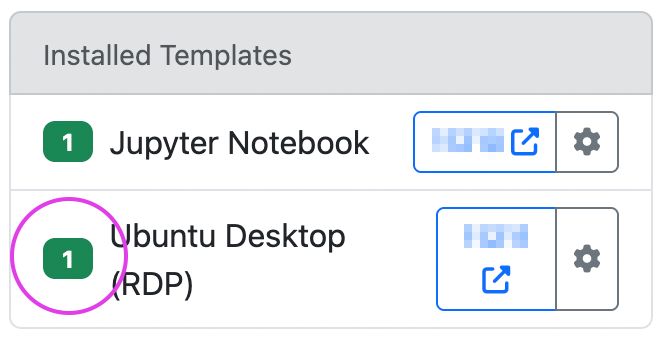
If the icon has a different color, the Templates is not ready for connection (Read more on Install Status of Templates).
Click on the Actions menue and select “Reveal SSH credentials”.
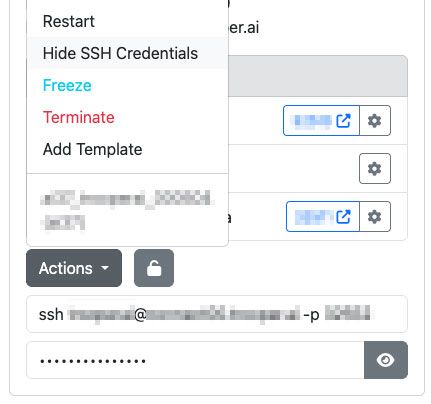
You can then connect via any RDP client, like “Windows App” or “Windows Remote Desktop”. Make sure its a RDP App - not VNC or anything else.
Mac OS: Use “Windows App”
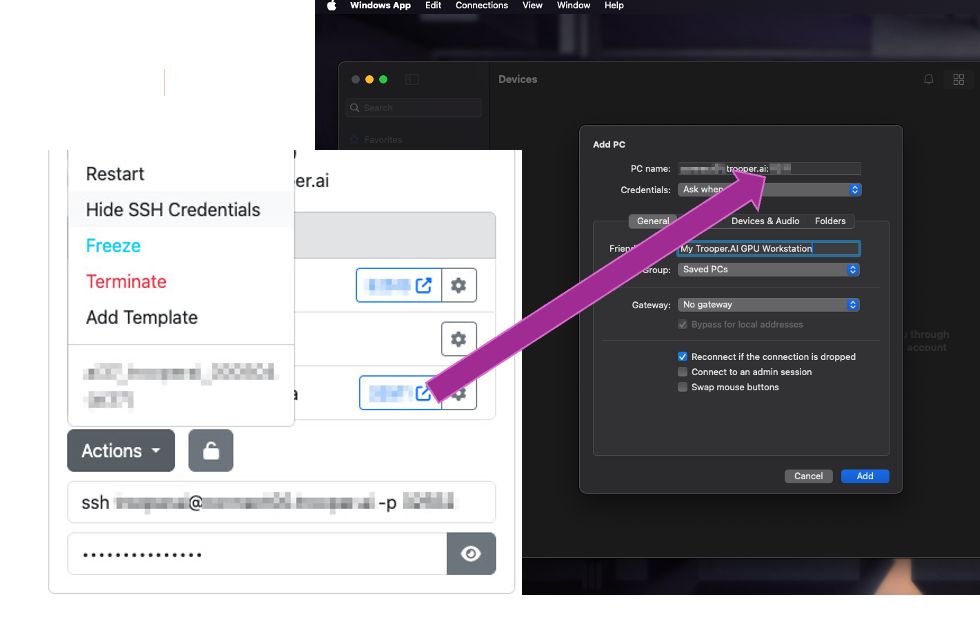
To connect to your Ubuntu Desktop via RDP on Mac OS, use the official Windows App from Apple App Store . It’s easy to set up! Make sure to use the correct hostname and the correct RDP port of your server. See in this example:
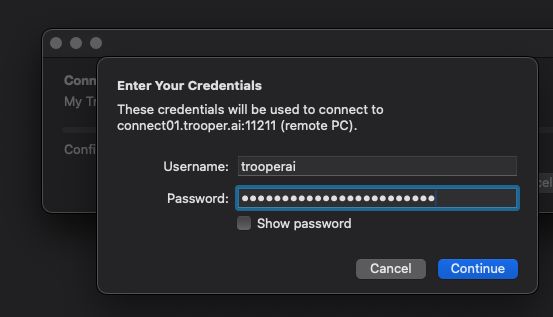
On connect enter your credentials like this:
Windows 10/11: use mstsc
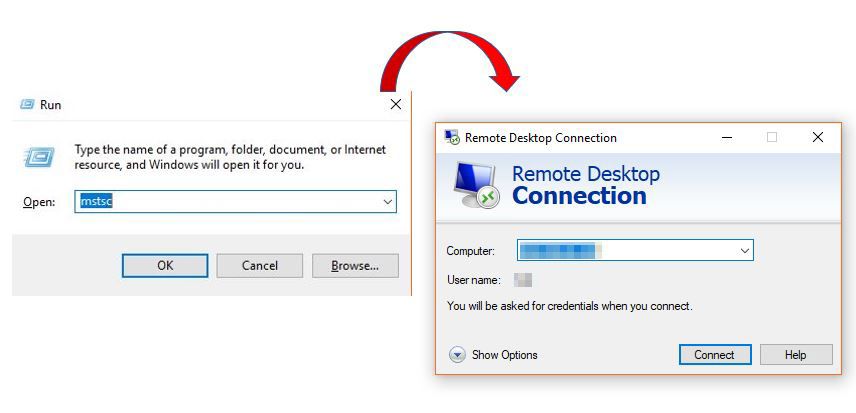
The mstsc.exe is a tool in Windows 10 and 11 to start connections to external GPU servers. It delivers standard performance and easy access. It comes preinstalled on windows and let you connect to Ubuntu Desktop within minutes via RDP.
Want full realtime feeling? Activate UDP and go with: Realtime Access with NoMachine
Help on first connect to Ubuntu Desktop
On first connect in case you see this, just click cancel:
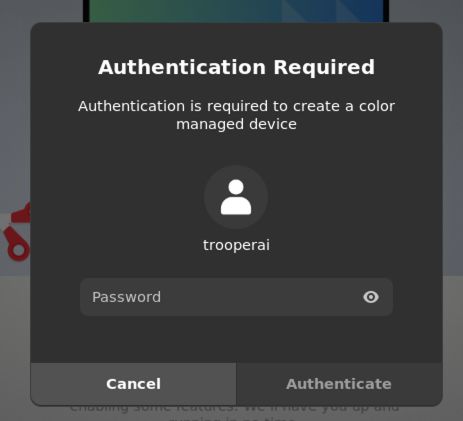
IMPORTANT Do not update to Ubuntu 24 or higher, this will break the RDP. You also do not need for now to update anything, just click on cancel on every dialog.
Now you should see the desktop and the RDP connection works. If you do not see the desktop, you should check the password. Most of the time it is a wrong password that prevents you from accessing the desktop! Read more about Ubuntu Desktop.
Video of expected Performance in the EU: